Connect your exchange API by following this page
Satoshi Note calls the exchange API from our server on your behalf, not from the app. So when you issue an API key at the exchange, register the fixed IP of the Satoshi Note server below — not the IP of the phone or PC you're using — or the connection won't work.
IP address to register
1.234.27.200

Upbit
On a PC, go to upbit.com → My Page → Open API Management
IP address to register
1.234.27.200
- 1New keys can only be issued from the PC web site — not the app
- 2On PC, sign in to upbit.com → My Page → Open API Management
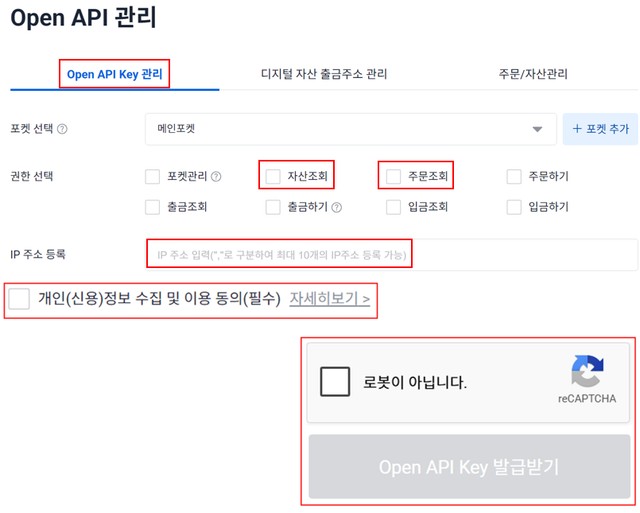
- 3Check Asset inquiry & Order inquiry → register your IP address → agree to the privacy terms → click Issue
- 4Come back here and paste the issued Access Key / Secret Key
Please check
- ·Make sure you select your main pocket (a sub-pocket key may not allow asset inquiry)
- ·Check only Asset inquiry and Order inquiry (never enable withdrawal permission)
- ·You must register an IP address on the issue screen (it's blocked otherwise) — copy it with the 'Copy IP' button above
- ·The issue button only unlocks after you check the privacy consent and pass the reCAPTCHA
- ·The Secret Key is shown only once when issued — copy it right away
- ·If you already have a key, check it under Upbit app → Authentication/Security → Open API Management

Bithumb
On a PC, go to bithumb.com → Account → API Management → API 2.0
IP address to register
1.234.27.200
- 1New keys can only be issued from the PC website — not from the app
- 2Log in to bithumb.com on a PC → Account → API Management → API 2.0 tab
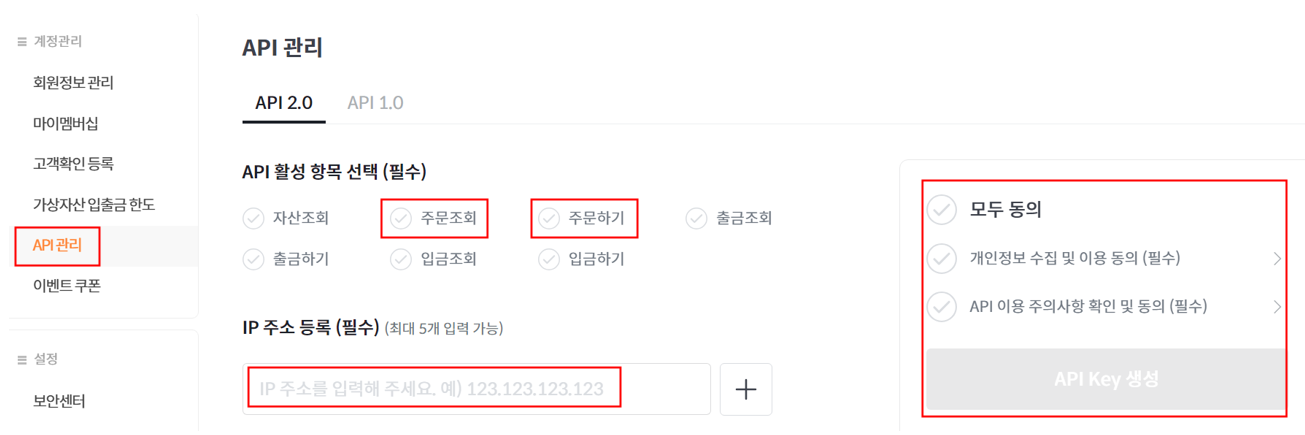
- 3Check Order inquiry and Place order → register your IP → agree to the terms → click Create API Key
- 4Come back here and paste the issued Access Key / Secret Key
Please check
- ·Checking Order inquiry and Place order is enough (never enable withdrawal permission)
- ·IP registration is required — calls are blocked from any other IP (up to 5 addresses)
- ·You must click 'Agree to all' to accept the privacy and API terms before the Create API Key button becomes clickable
- ·The Secret Key is shown only once at issuance — copy it right away

Coinone
Coinone web, top-right profile icon → 'Open API'
IP address to register
1.234.27.200
- 1Log in to coinone.co.kr on PC → click the profile icon top-right → select 'Open API'
- 2On the API management screen, click 'Issue new key'
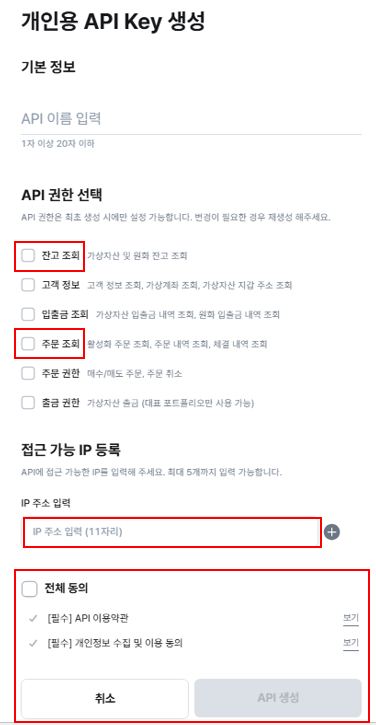
- 3Check Balance inquiry and Order inquiry → register your IP → check agree to all → Create API
- 4Come back to this screen and paste the issued Access Token / Secret Key
Please check
- ·Check only Balance inquiry and Order inquiry (never enable withdrawal permissions)
- ·IP registration required (up to 5, fixed public IPv4)
- ·You must check 'Agree to all' before the 'Create API' button becomes clickable
- ·The Secret Key is shown only once when issued — copy it right away

Korbit
Korbit Developer Center (developers.korbit.co.kr), top right → 'Open API management'
IP address to register
1.234.27.200
- 1Log in at developers.korbit.co.kr → click 'Open API management' top right
- 2Click 'Create API key'
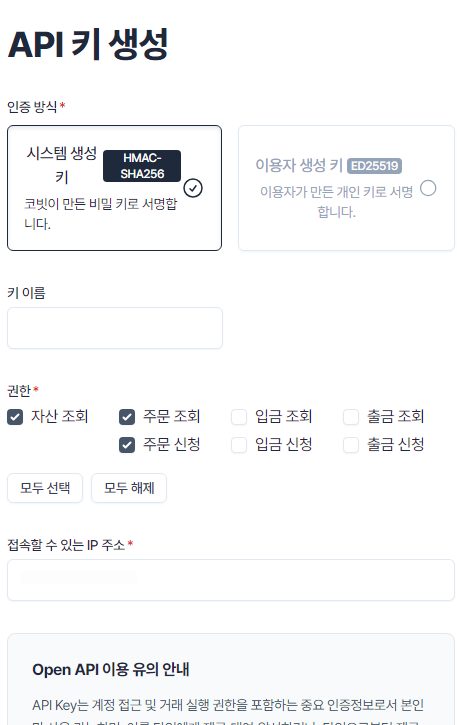
- 3Leave the auth method on the default 'System-generated key' and enter a key name
- 4Check Asset inquiry, Order inquiry, and Order request → enter your IP address → Create API key
- 5Come back to this screen and paste the issued Access Key / Secret Key
Please check
- ·Leave the auth method on the default 'System-generated key'
- ·Check only Asset inquiry, Order inquiry, and Order request (never enable deposit or withdrawal permissions)
- ·IP address registration is required
- ·Korbit only returns fills from the last 36 hours, and only for assets already in your records

Binance
Log in to Binance web → profile icon → API Management
IP address to register
1.234.27.200
- 1Log in to binance.com → profile icon (top right) → go to API Management
- 2Click 'Create API' → choose a system-generated API key → enter a label and create
- 3Verify by email/OTP → come back to this screen and paste the issued API Key / Secret Key
Please check
- ·Never enable Withdrawals — this app only needs Enable Reading access
- ·Trades are fetched per symbol — it pulls mostly the symbols already in your records
- ·Fills are priced in USDT, so they're auto-converted to KRW using the Upbit KRW-USDT rate at the trade's time
- ·The Secret Key is shown only once when issued — copy it right away

Gopax
Log in to Gopax web → issue an API key on the Account page
IP address to register
1.234.27.200
- 1Log in to gopax.co.kr on PC → go to the Account page
- 2Leave withdrawal permission off and select only inquiry permission to create the key
- 3Come back to this screen and paste the issued API Key / Secret Key
Please check
- ·Never enable withdrawal permission — this app only needs inquiry access
- ·The API Key expires 1 year after issuance (no renewal — you have to issue a new one)
- ·A registered IP only restricts crypto withdrawals — read-only API calls aren't affected by the IP allowlist
- ·The Secret Key is shown only once when issued — copy it right away

Bitget
Log in to Bitget web → account icon → API Management
IP address to register
1.234.27.200
- 1Log in to bitget.com → account icon (top right) → go to API Management
- 2Click 'Create API Key' → enter a label and a Passphrase (you choose it) → create
- 3Verify by email/OTP → come back to this screen and paste the issued API Key / Secret Key / Passphrase
Please check
- ·Never enable withdrawal permissions — this app only needs read access
- ·The Passphrase you set at creation is required for every request — be sure to remember it
- ·Trades are fetched per symbol — it pulls mostly the symbols already in your records
- ·Fills are priced in USDT, so they're auto-converted to KRW using the Upbit KRW-USDT rate at the trade's time
- ·The Secret Key is shown only once when issued — copy it right away

Backpack
Log in to Backpack Exchange web → Portfolio → Settings → API Keys
IP address to register
1.234.27.200
- 1Log in to backpack.exchange → portfolio icon → Settings → go to API Keys
- 2Click 'Add API key' → name it, keep the permission at Read only → create
- 3Come back to this screen and paste the issued API Key / API Secret (the secret is shown only once)
Please check
- ·Never enable withdrawal or trading permissions — this app only needs read access
- ·Backpack keys use ED25519: the API Key is the public key and the API Secret is the seed (private key) — paste both base64 strings as-is
- ·Only spot fills are imported — perpetual (PERP) trades aren't holdings, so they're skipped
- ·Fills are priced in USDC, so they're auto-converted to KRW using the Upbit KRW-USDT rate at the trade's time
- ·The API Secret is shown only once when issued — copy it right away
Once you have your API key, go back to the Satoshi Note app → Settings > Linked accounts and enter it.
If it still doesn't connect, let us know via Contact in the app.