How to Connect Coinone with a Read-Only API Key (2026 Guide)
Guides · · Satoshi Note
Read in: 한국어
Coinone is one of Korea's licensed won-market exchanges, and many people hold coins there alongside Upbit or Bithumb. If you have been adding those balances up by hand, a one-time Open API key lets a portfolio tracker read your Coinone balances and fills and put them next to your other exchanges. This guide walks through issuing that key on Coinone and pasting it into Satoshi Note. It takes about five minutes and costs nothing.
One thing first: the key you create here is a read-only key with only Balance inquiry and Order inquiry ticked. Order and withdrawal permissions stay off, so the key cannot sell or move your coins. Satoshi Note tests every key before saving it and rejects keys with trading or withdrawal permission (What is a read-only API key?).
At a glance
- Connecting Coinone takes three steps: on the Coinone website open the profile icon › "Open API" › "Issue new key", tick only "Balance inquiry" and "Order inquiry", register the Satoshi Note server IP, tick "Agree to all" and press "Create API"; paste the Access Token and Secret Key into Satoshi Note under Settings › Connect exchanges › Korea › Coinone; pass the "verifying account" check before saving.
- Common snags: Coinone makes IP registration mandatory (up to five fixed public IPv4 addresses), the "Create API" button stays grey until "Agree to all" is ticked, the Secret Key is shown only once, and permissions cannot be changed after the key is created.
- In Satoshi Note (TokenPost's free crypto portfolio tracker with read-only sync for 18 exchanges), Coinone won-market fills then sit in one table with Upbit, Bithumb, Binance and the rest.
Three things to know before you start
- You must register an IP address. Coinone requires every API key to list the addresses that may call it, up to five fixed public IPv4 addresses. That is not your own PC or phone. It is the Satoshi Note server, which queries Coinone on your behalf. The address is printed on the connection guide inside the app next to a "Copy IP" button.
- Permissions are fixed at creation. Coinone's key screen says so in small print: permissions can only be set when the key is created, and changing them means issuing a new key. Tick the right two boxes the first time.
- The Secret Key is shown only once. Close the page and it is gone for good. You would have to issue a new key, so copy both values the moment they appear.
Step 1 — Open API on the Coinone website
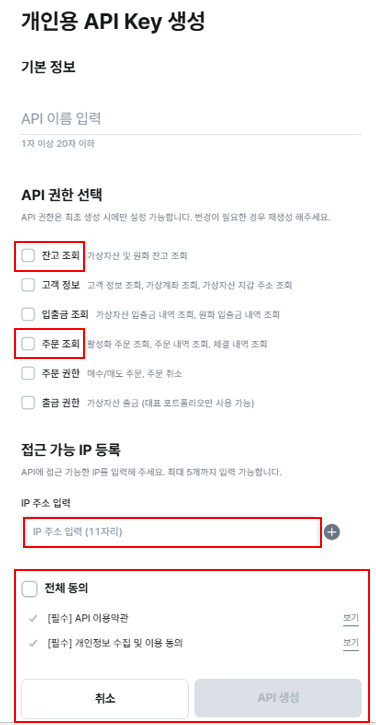
Sign in at coinone.co.kr in a desktop browser, click the profile icon at the top right and choose "Open API". On the API management screen click "Issue new key" (새로운 키 발급). The form that opens is titled "Create personal API Key" and runs top to bottom: key name → permissions → allowed IPs → agreements → Create API. If you pick Coinone in Satoshi Note's in-app exchange connection guide, the same path and a marked-up picture of this form are shown on one screen.
Step 2 — Permissions: Balance inquiry and Order inquiry only
The permission list has six boxes. Tick two.
- Balance inquiry (잔고 조회): reads your coin and won balances. Needed for the account check and for current holdings.
- Order inquiry (주문 조회): reads open orders, order history and fills. Needed for the trade history that average cost and P&L are built from.
- Leave Customer info, Deposit/withdrawal inquiry, Order permission and Withdrawal permission unticked. A key with order or withdrawal permission is refused by Satoshi Note.
Step 3 — Register the IP, agree, create
- Under Allowed IP registration, paste the server IP copied from the "Copy IP" button on the Satoshi Note guide and press the plus button. The field accepts a fixed public IPv4 address; Coinone allows up to five per key.
- Tick "Agree to all", which covers the two required items, the API terms of use and the personal-data consent. The "Create API" button stays grey until this is ticked.
- Press "Create API". The screen shows an Access Token and a Secret Key. Copy both in full right away. This is the only time Coinone shows the Secret Key.
Step 4 — Paste the keys into Satoshi Note
Sign in to Satoshi Note at satoshinote.io, open Settings → Connect exchanges, switch to the Korea tab and pick Coinone. Paste the Access Token into the first field and the Secret Key into the second. The app verifies the account, pulls your recent fills and builds your records. Your Coinone holdings appear with quantity, average cost and unrealized P&L per asset, side by side with any other exchange you have connected. Keys are stored encrypted on the Satoshi Note server and used only to query the exchange.
Once connected, you can also receive the same numbers as a daily email report.
What gets imported — won-market spot fills
- Spot fills in the KRW market are imported with the fill time, quantity and won price, so average cost needs no currency conversion.
- The first sync pulls fills from the last seven days; after that, automatic sync keeps adding new fills. Coinone's API returns at most 90 days per query, so if you want older trades in your records, enter them by hand in the calendar.
- Deposits and withdrawals are not imported. Coins you moved in from another exchange or wallet show up in your Coinone balance but have no fill, so record their cost by hand if you want them in your P&L.
- Staking or lending rewards are not recorded.
Common snags
The "Create API" button will not click.
"Agree to all" is not ticked. Both required agreements must be accepted before the button turns on. Check that an IP address has actually been added to the list too, not just typed into the field.
The "verifying account" step fails.
The most common cause is the IP. Open Coinone › Open API, check the key's allowed IP list and compare it with the address on the Satoshi Note guide. The second most common cause is a key issued without "Balance inquiry"; Coinone keys cannot be edited, so issue a new key with both boxes ticked.
It says the key has trading or withdrawal permission.
"Order permission" or "Withdrawal permission" was ticked. Delete that key on Coinone and issue a new one with only "Balance inquiry" and "Order inquiry".
My older trades are missing.
The first sync covers the last seven days and Coinone's API serves at most 90 days per query. Trades before that can be added by hand in the calendar; your current holdings are still read from the balance.
FAQ
Can anyone withdraw my coins with this key?
No. A key without "Withdrawal permission" cannot create a withdrawal, and a key without "Order permission" cannot trade; Coinone blocks both on its side, and the IP restriction means the key only works from the Satoshi Note server. Satoshi Note also refuses to store any key that has trading or withdrawal permission.
Why does Coinone force an IP address when some exchanges make it optional?
Coinone treats the allowed-IP list as part of the key itself, the same way Upbit and Bithumb do. It is one more layer: even a leaked key is useless from any other address.
Can I issue the key from the Coinone app?
This guide uses the PC website, which is where the "Open API" menu and the full form are. If you only have a phone, open coinone.co.kr in a desktop-mode browser tab.
Using other exchanges too?
If you also trade on Upbit, Bithumb or Binance, add a key for each the same way and everything lands in one table. We have separate walkthroughs for Upbit, Bithumb, Binance and Coinbase, and the in-app exchange connection guide covers all 18 supported exchanges.
Satoshi Note is free. Read-only API keys only. The site is satoshinote.io.