How to Connect Upbit with a Read-Only API Key (2026 Guide)
Guides · · Satoshi Note
Read in: 한국어
Upbit is the largest crypto exchange in Korea, and if you hold coins there alongside Binance, Coinbase or a hardware wallet, you have probably been adding up balances by hand. The fix is a one-time Open API key that lets a portfolio tracker read your balances and fills. This guide walks through issuing that key on Upbit and pasting it into Satoshi Note. It takes about five minutes and costs nothing.
One thing first: the key you create here is a read-only key with only Asset inquiry and Order inquiry enabled. Withdrawal and order permissions stay off, so the key cannot sell or move your coins. If you want the longer explanation of why that matters, see What is a read-only API key?.
Three things to know before you start
- New keys can only be issued from the PC website. The Upbit mobile app lets you view and manage existing keys, but not create new ones. Sign in at upbit.com in a desktop browser.
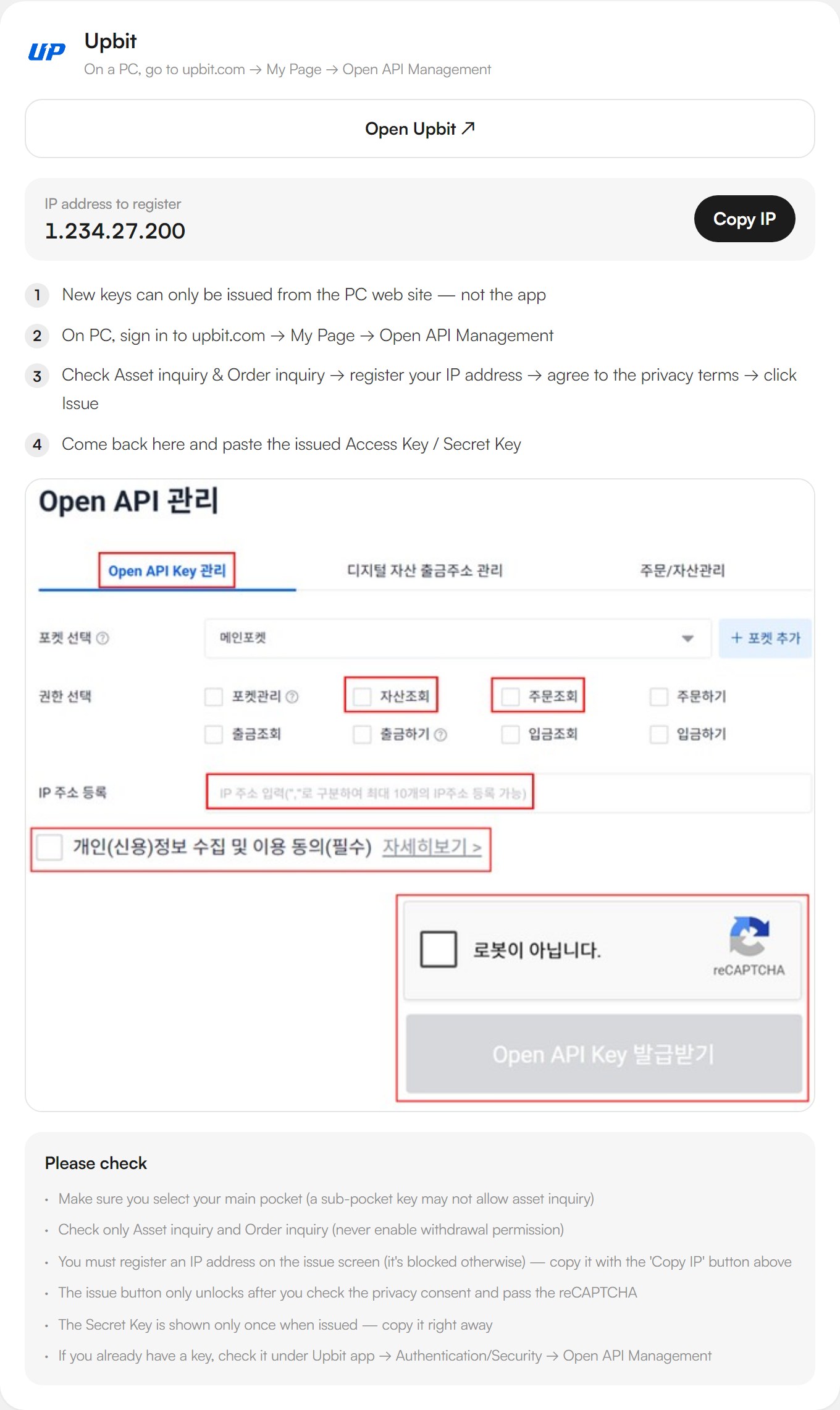
- You must register an IP address. Upbit requires every key to list the IP that will send requests. That is not your own PC or phone. It is the Satoshi Note server, which queries Upbit on your behalf. The address is printed on the connection guide inside the app next to a "Copy IP" button (see the screenshot below).
- The Secret Key is shown only once. Close the page and it is gone for good. You would have to issue a new key, so copy both keys the moment they appear.
Step 1 — Open API Management on the Upbit website
Sign in at upbit.com on a PC and go to My Page → Open API Management. The screenshot below is the Upbit section of Satoshi Note's connection guide: the four-step path, the IP to register, and a marked-up picture of the Upbit issue screen showing exactly which boxes to tick.
Step 2 — Tick only Asset inquiry and Order inquiry
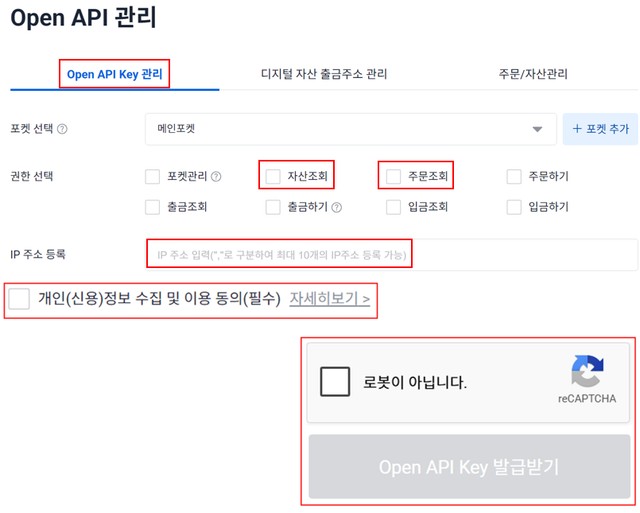
The issue page runs top to bottom: pocket → permissions → IP registration → privacy consent → reCAPTCHA → Issue.
- Leave the pocket on your main pocket. A key issued for a sub-pocket may not be allowed to read assets.
- Under permissions, tick Asset inquiry and Order inquiry only. Leave pocket management, placing orders, withdrawals, deposits, and withdrawal/deposit history unticked.
- Asset inquiry returns what you hold right now. Order inquiry returns your fills, meaning when you bought or sold, how much, and at what price. Those two are all a portfolio tracker needs to compute average cost and P&L.
Step 3 — Register the IP and agree to the terms
- Paste the address you copied with the "Copy IP" button into the IP address field. If you leave it empty, the key may still be issued but every request from it will be rejected.
- Tick the privacy consent box and pass the reCAPTCHA. The "Issue Open API Key" button stays disabled until both are done.
- Click Issue. Upbit shows an Access Key and a Secret Key. Copy both now. The Secret Key will not be shown again.
Step 4 — Paste the keys into Satoshi Note
Sign in to Satoshi Note at satoshinote.io, open Settings → Connect exchanges, switch to the Korea tab and pick Upbit. Paste the Access Key and Secret Key. Within a few seconds the app verifies the account, pulls recent fills, and builds your records. Your Upbit holdings appear with quantity, average cost and unrealized P&L per asset, side by side with any other exchange you have connected. Keys are stored encrypted on the Satoshi Note server and used only to query the exchange.
Once connected, you can also receive the same numbers as a daily email report.
Already have a key? Check it in the Upbit app
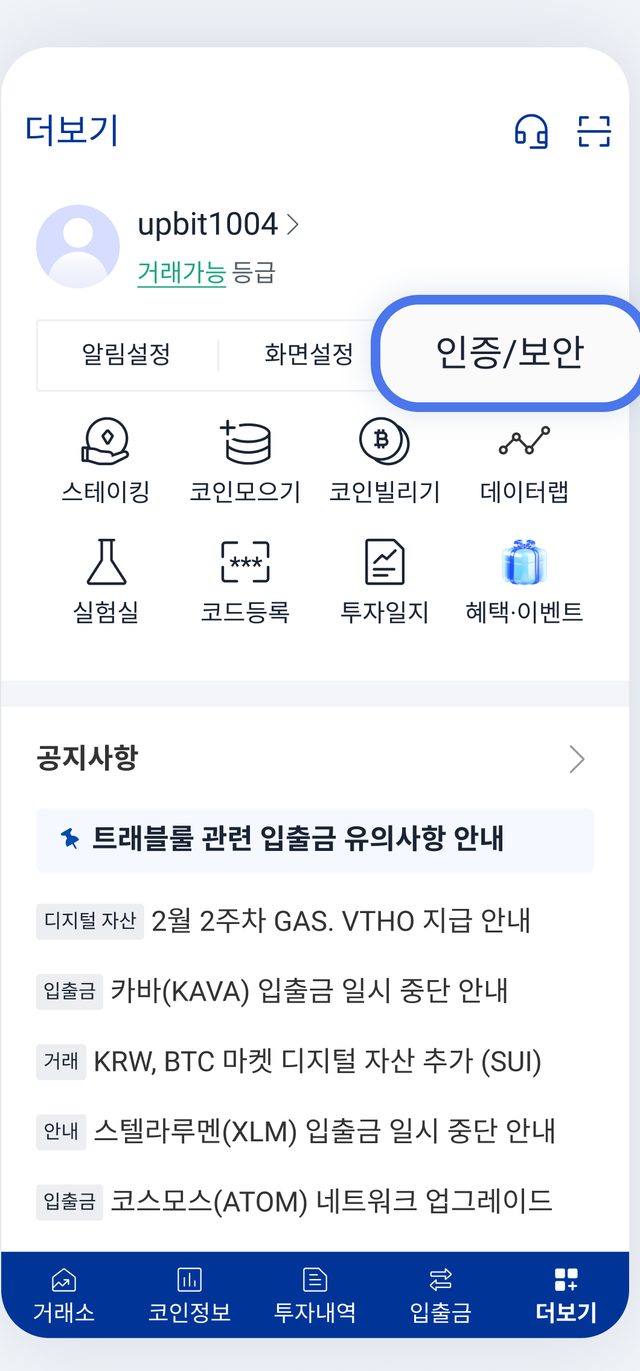
If you issued a key earlier and want to reuse it, the Upbit app can show it: More → Authentication/Security → Open API Management. The list shows active keys. Tap one to see its issue date, expiry, Access Key and granted permissions. The Secret Key is not shown here either. If you did not save it, issuing a fresh key on the PC site is faster than hunting for it.
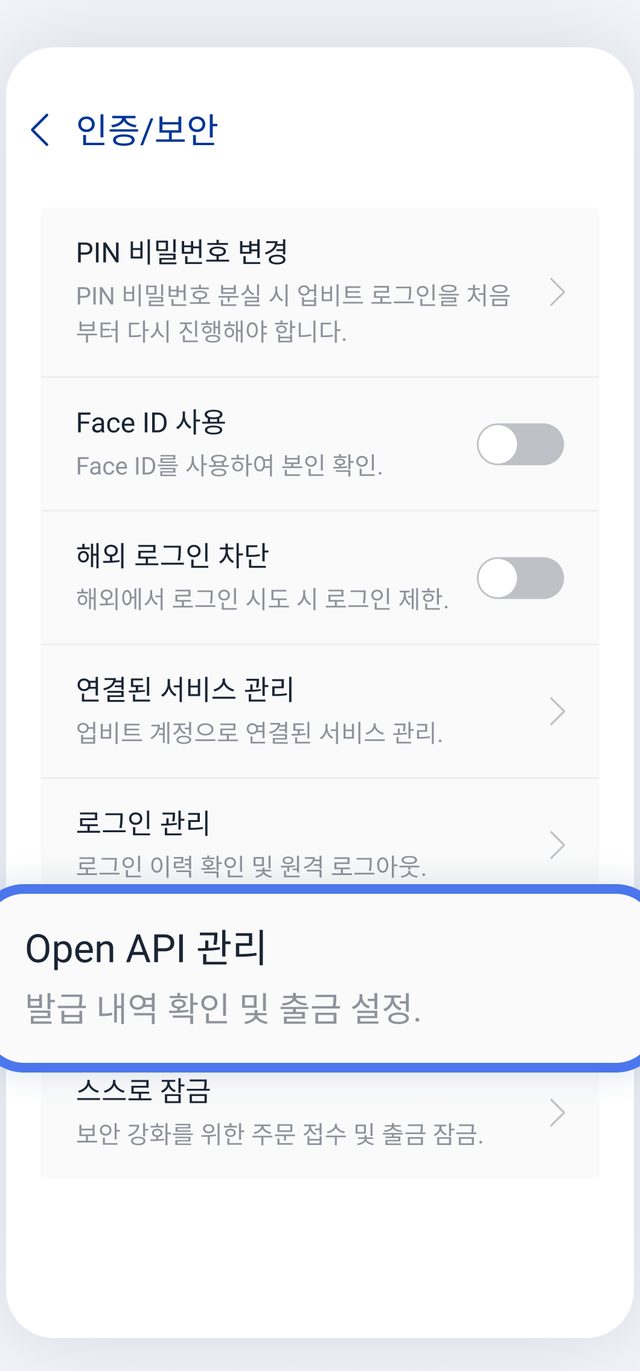
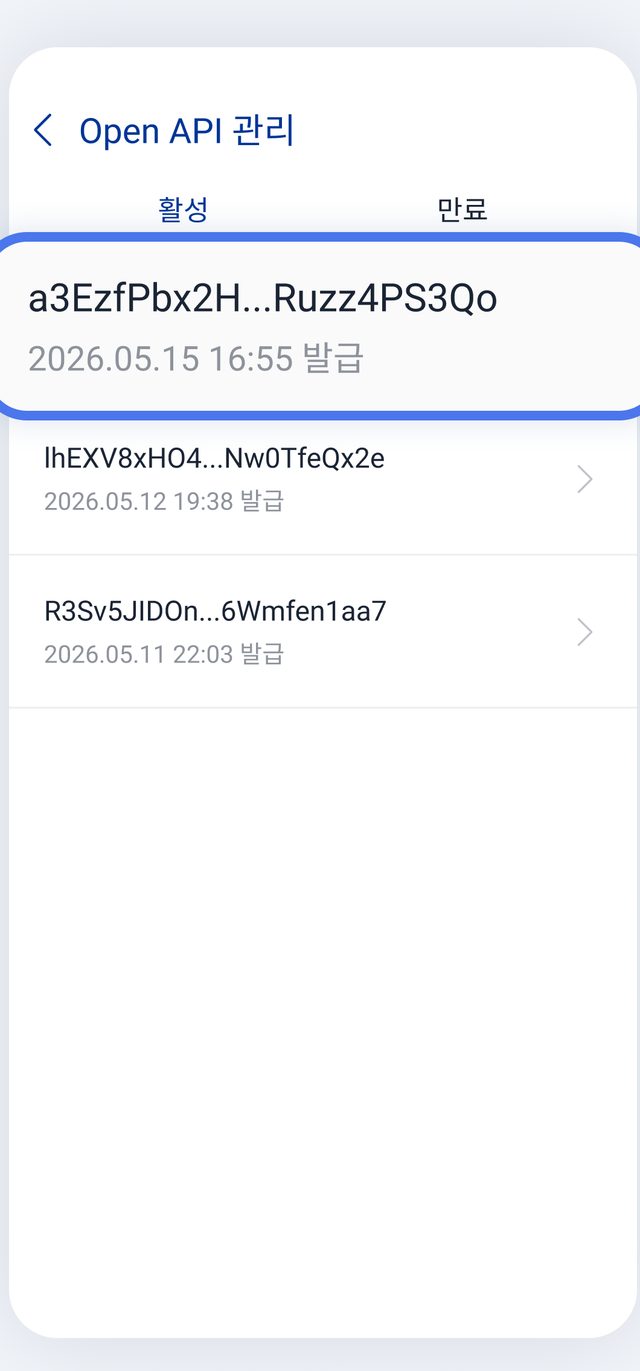
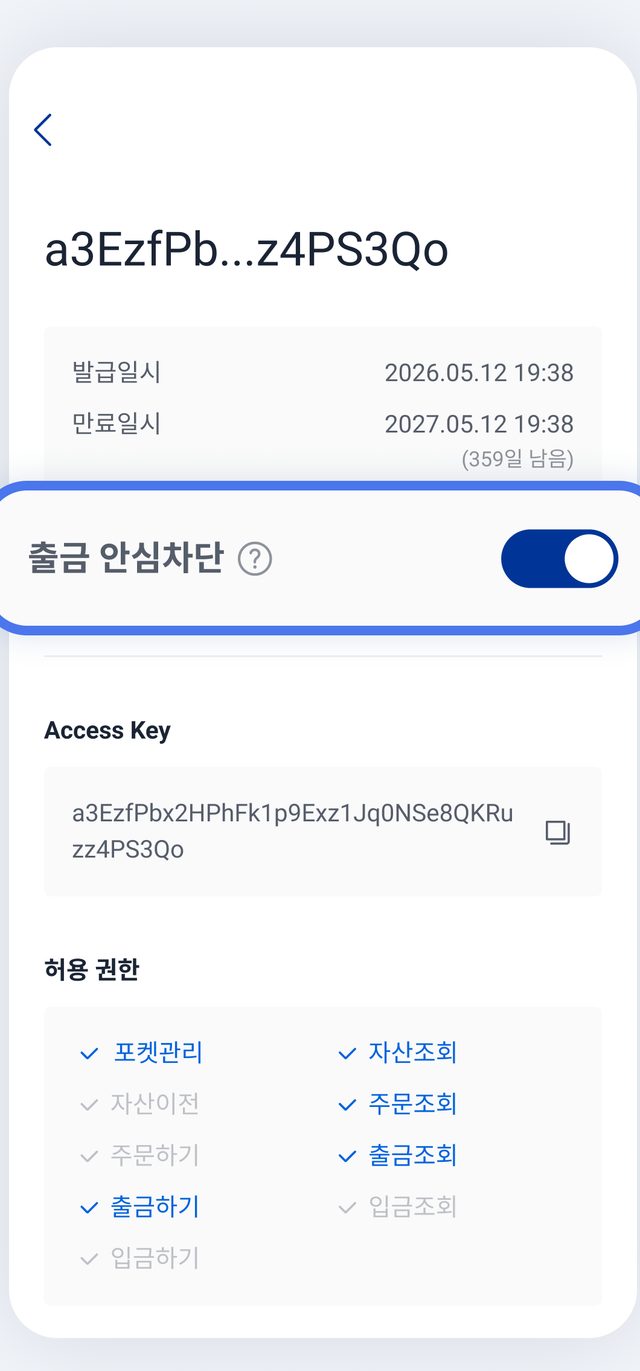
The Withdrawal safety block toggle on the key detail screen is worth noticing. When it is on, that key cannot withdraw regardless of its permissions. A read-only key has no withdrawal permission anyway, but it is a free extra layer.
Common snags
The Issue button is greyed out. Both the privacy consent and the reCAPTCHA have to be completed. An empty IP field can also keep it disabled.
The key fails at the "verifying account" step. The usual cause is a missing or wrong IP. Open the key in Upbit's Open API Management and compare its registered IP with the one on Satoshi Note's guide page. A key issued for a sub-pocket can also fail asset inquiry.
Do Upbit keys expire? Yes, one year from issuance. The key detail screen in the app shows the expiry and days remaining. When it expires, issue a new key the same way and replace it in Satoshi Note.
Does it import deposits and withdrawals? Satoshi Note imports Upbit spot fills and balances. Coins you transferred in from another exchange or wallet show up in the balance but have no fill history, so that quantity is recorded as a deposit.
Using other exchanges too?
If you also trade on Bithumb or Binance, add a key for each the same way and everything lands in one table. We have separate walkthroughs for Bithumb and Binance, and the in-app exchange connection guide covers all 13 supported exchanges with screenshots.
Satoshi Note is free. Read-only API keys only. The site is satoshinote.io.